> ## Documentation Index
> Fetch the complete documentation index at: https://docs.topify.ai/llms.txt
> Use this file to discover all available pages before exploring further.
# Tutorial: Manage prompts
> Read the prompts page, accept suggestions, and organize by topic.
Curate the prompts Topify tracks for your brand. You'll first learn how to read the prompts page, then accept suggestions and inspect a prompt's analytics.
**Prerequisites**: A project with bootstrapping complete. If you don't have one yet, follow [Tutorial: Set up your first project](/quickstart).
## Where prompts live
Navigate to **Tracking > Prompts** in the sidebar.
 ## What you see on this page
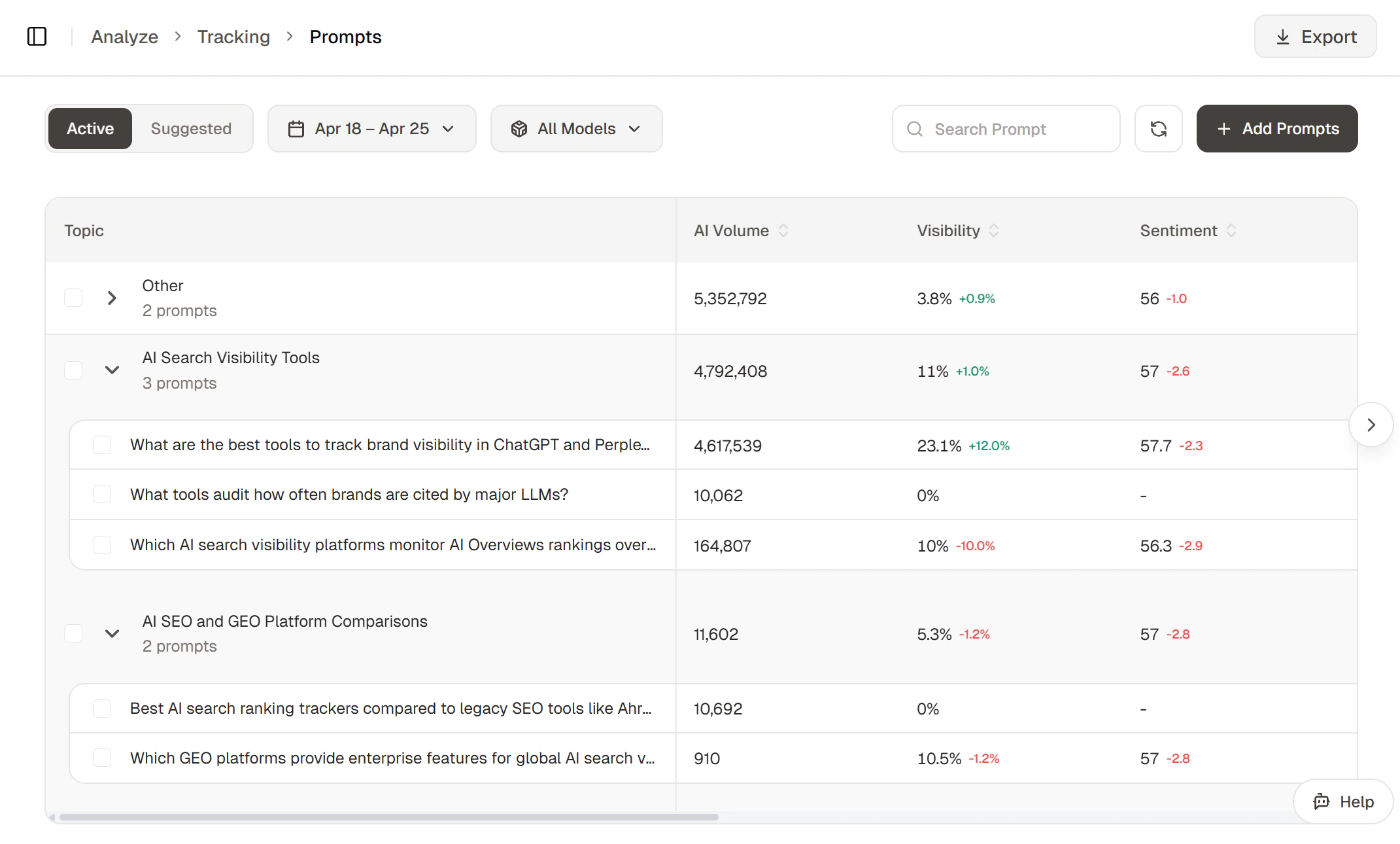
The page has several sections — understanding each makes the rest of the tutorial click.
### Tabs
* **Active** -- prompts that Topify sends to AI providers daily and tracks.
* **Suggested** -- AI-drafted prompts waiting for your decision. Promote them to Active or reject them.
### Filter bar
The bar above the table controls the metric columns on the right:
* **Date range** -- the period that Visibility, Sentiment, and the trend deltas are calculated over.
* **All Models** -- which AI providers (ChatGPT, Perplexity, Google AI Overview) are included. Switching narrows the metrics to just that provider.
* **Search prompt** -- text search across prompt content.
* **+ Add Prompts** -- add a custom prompt or import from research. See [Managing prompts](/guides/managing-prompts).
### Topic groups
Prompts are grouped by topic. Each topic header shows the topic name and the prompt count (e.g. *AI Search Visibility Tools — 3 prompts*).
* Click the **chevron** on the left of a topic row to expand or collapse it.
* Click the **topic row itself** to select every prompt under that topic — useful for bulk actions like untracking a whole topic at once.
### Columns
The table shows AI Volume, Visibility, and Sentiment for each prompt, with green/red deltas comparing the selected period to the prior one. For full definitions of every metric, see [Brand metrics](/concepts/brand-metrics).
## Steps
Switch to the **Suggested** tab.
## What you see on this page
The page has several sections — understanding each makes the rest of the tutorial click.
### Tabs
* **Active** -- prompts that Topify sends to AI providers daily and tracks.
* **Suggested** -- AI-drafted prompts waiting for your decision. Promote them to Active or reject them.
### Filter bar
The bar above the table controls the metric columns on the right:
* **Date range** -- the period that Visibility, Sentiment, and the trend deltas are calculated over.
* **All Models** -- which AI providers (ChatGPT, Perplexity, Google AI Overview) are included. Switching narrows the metrics to just that provider.
* **Search prompt** -- text search across prompt content.
* **+ Add Prompts** -- add a custom prompt or import from research. See [Managing prompts](/guides/managing-prompts).
### Topic groups
Prompts are grouped by topic. Each topic header shows the topic name and the prompt count (e.g. *AI Search Visibility Tools — 3 prompts*).
* Click the **chevron** on the left of a topic row to expand or collapse it.
* Click the **topic row itself** to select every prompt under that topic — useful for bulk actions like untracking a whole topic at once.
### Columns
The table shows AI Volume, Visibility, and Sentiment for each prompt, with green/red deltas comparing the selected period to the prior one. For full definitions of every metric, see [Brand metrics](/concepts/brand-metrics).
## Steps
Switch to the **Suggested** tab.
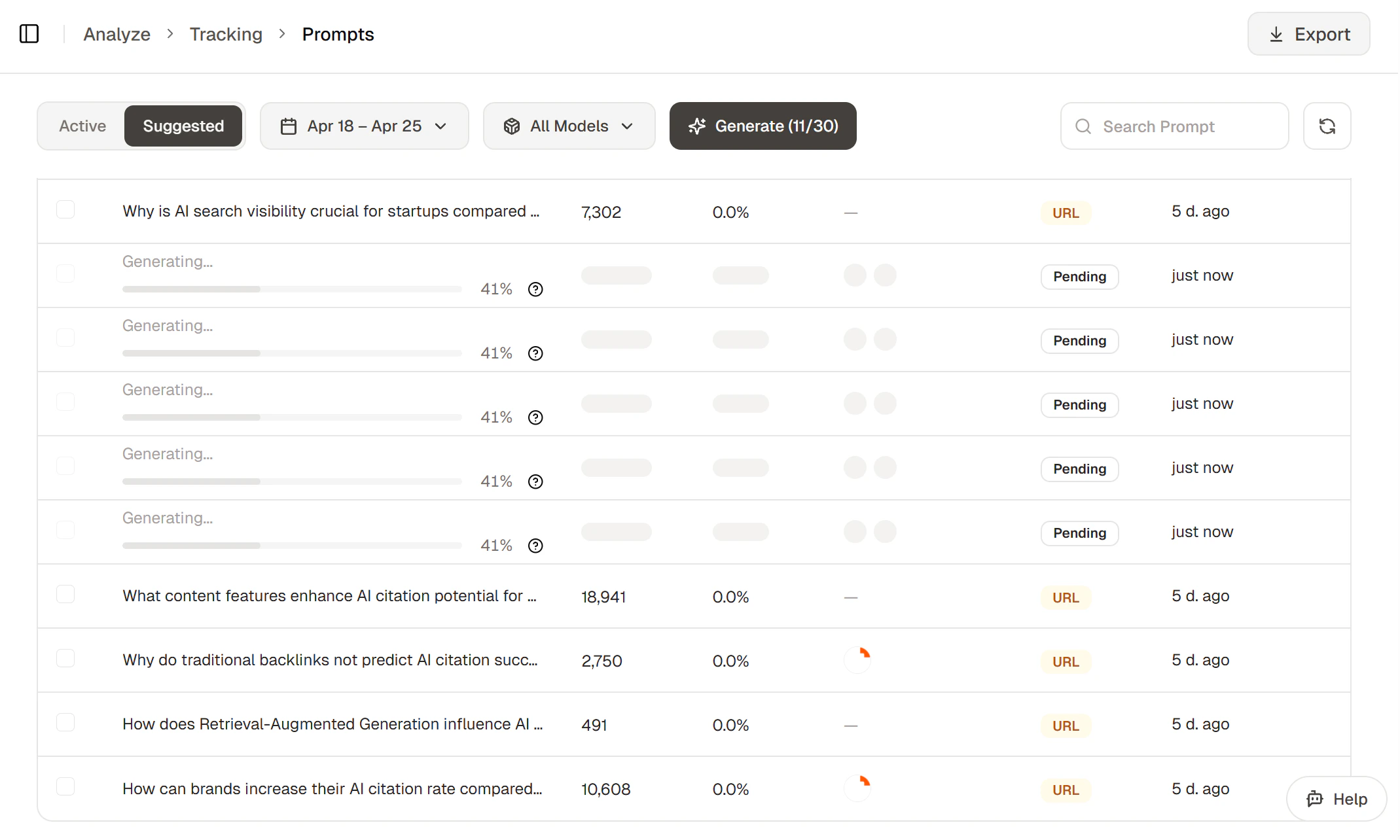 The **type** column on the right tags each suggestion as either:
* **Suggested** -- generated from your brand context.
* **URL** -- generated from the [From research](/guides/managing-prompts#from-research) flow. This takes a URL (your blog post, landing page, or any sub-page of your site) and drafts prompts targeting that page so you can track how AI assistants surface it.
Click the refresh button to refresh the list. Use the checkboxes and the bulk action bar at the bottom to **Track** (promote to Active) or **Reject** (remove from the list).
Click any active prompt to open its detail page.
The **type** column on the right tags each suggestion as either:
* **Suggested** -- generated from your brand context.
* **URL** -- generated from the [From research](/guides/managing-prompts#from-research) flow. This takes a URL (your blog post, landing page, or any sub-page of your site) and drafts prompts targeting that page so you can track how AI assistants surface it.
Click the refresh button to refresh the list. Use the checkboxes and the bulk action bar at the bottom to **Track** (promote to Active) or **Reject** (remove from the list).
Click any active prompt to open its detail page.
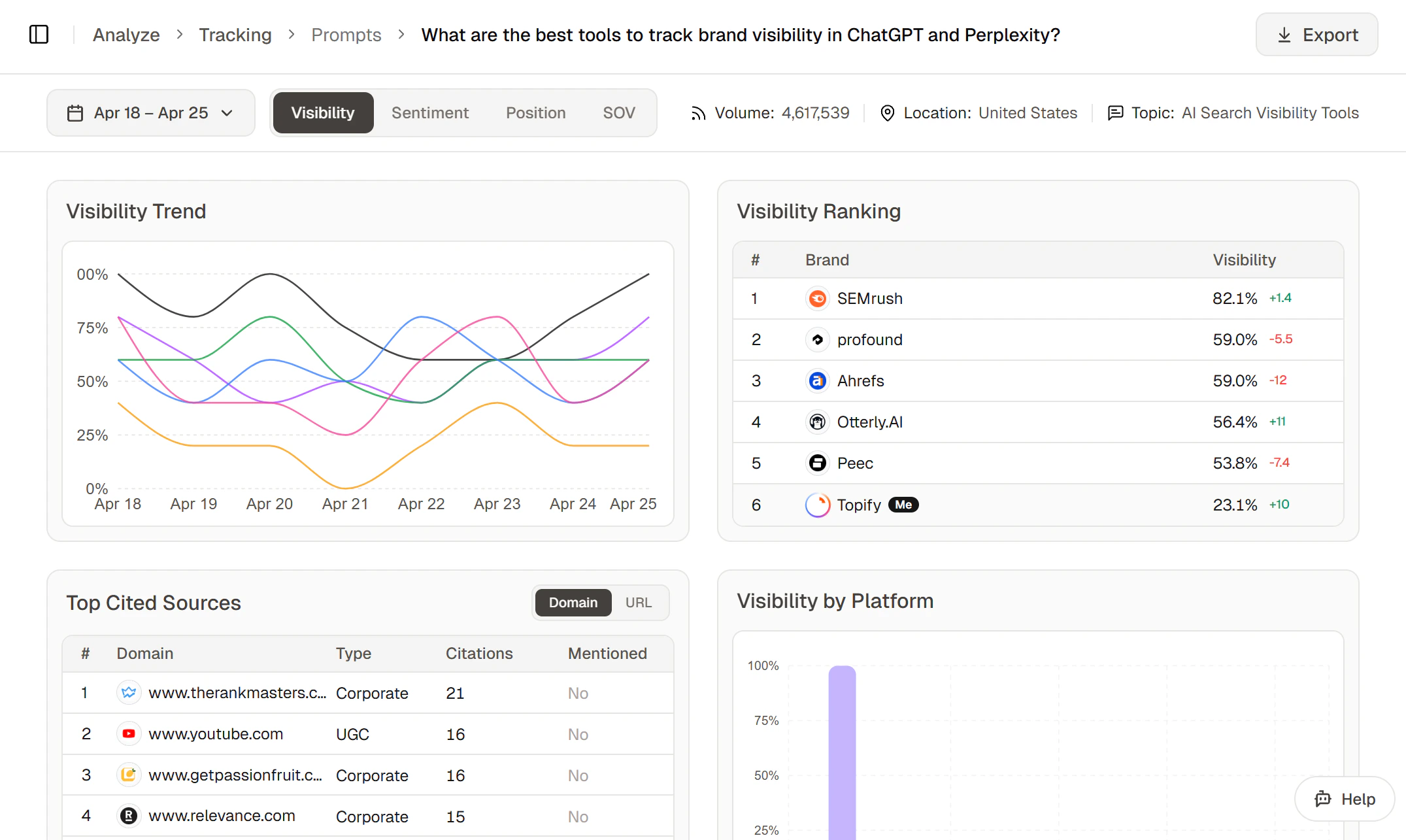 From here you can see:
* Per-provider metrics (visibility, sentiment, position)
* Cited domains and URLs
* The actual AI responses that were collected
Drill into a domain to see every response that cited it.
## What's next
Use prompts as input for AI-optimized article generation.
Let the agent suggest prompt edits and topic restructures.
## FAQ
### What makes a prompt "good"?
A good prompt is something a real buyer would actually type into ChatGPT or Perplexity — usually a question rather than a keyword string ("what's the best CRM for a 5-person sales team?" rather than "best CRM small team"). Mix intent types (informational, comparison, transactional) so you cover the full buyer journey, not just the bottom of the funnel.
### Can I edit a prompt after activating it?
Editing the prompt text would change what we send to AI providers daily and break trend continuity for that prompt, so we don't allow it. Instead, **untrack** the prompt you want to change and **add** a new version. Historical data on the old prompt is preserved.
From here you can see:
* Per-provider metrics (visibility, sentiment, position)
* Cited domains and URLs
* The actual AI responses that were collected
Drill into a domain to see every response that cited it.
## What's next
Use prompts as input for AI-optimized article generation.
Let the agent suggest prompt edits and topic restructures.
## FAQ
### What makes a prompt "good"?
A good prompt is something a real buyer would actually type into ChatGPT or Perplexity — usually a question rather than a keyword string ("what's the best CRM for a 5-person sales team?" rather than "best CRM small team"). Mix intent types (informational, comparison, transactional) so you cover the full buyer journey, not just the bottom of the funnel.
### Can I edit a prompt after activating it?
Editing the prompt text would change what we send to AI providers daily and break trend continuity for that prompt, so we don't allow it. Instead, **untrack** the prompt you want to change and **add** a new version. Historical data on the old prompt is preserved.